Library and Learning Centre
Te Whare Pukapuka Wāhanga Whakapakari Ako

eBook guide

How do I find an eBook?

To search for eBooks:

Search Everything

  • enter your keywords into the search box
  • filter your results
  • apply the filter eBooks
  • click Apply

Catalogue

  • click on Catalogue above the search box
  • enter your keywords
  • scroll the results to look for eBooks
    (you can also limit the results to 'eBooks' only. Click Modify Search and select 'ebooks' under Material Type)

Don't hesitate to get in touch with your friendly Library & Learning Support Team for more help.

Also see How do I use an eBook?

How do I use an eBook?

Once you find an eBook you want to read, click on it to open it. Depending on the platform, you may see one of these options:

  • Read Online
  • Click to view eBook
  • Read Now
  • Access now (eBook)
  • Access options

If prompted, login with your Open Polytechnic or Te Rito Maioha username and password.


Usually you can read online within the eBook platform. If the book is unavailable, please try again; the book may be available after 30 minutes. We recommend downloading the PDF of your chapter/reading. Please note - this option is not always available.

See our quick guide for more detail:

What if an ebook is unavailable?

  • If an eBook is currently unavailable, someone else may be reading it.  We often find it becomes available within 30 minutes. 
     
  • eBooks may be either owned by the library or may be part of an eBook subscription. If you have accessed an eBook before, and it is no longer available, it is possible that it's been removed from the subscription.

    Tip: when you have finished, exit out of the eBook (close the window) so another student can access it.

Check with the Library & Learning Support team if you need more help.


eBook formats: PDF and ePub

You may have found that eBooks come in different formats: ePub or PDF.  There are different reasons for choosing one format over the other, depending on your needs and how you will be reading the eBook.

ePub

  • You can adjust the font size, word and line spacing
  • The text will "reflow" depending on the viewing window  
  • Page numbers change depending on size of your screen
  • Works with screen reading software
  • Great for using when on a mobile or tablet  

PDF

  • PDF matches up to the print version, and can easily get page numbers for in-text citation
  • Can link to a section of the text/chapter  
  • Can download pages as a PDF to read offline
  • Great for using while on a computer or tablet


How to switch between PDF and ePub on different platforms

ProQuest eBooks

To switch between ePub and PDF, go to Book Details and click on Switch to PDF or Switch to ePub

EBSCO eBooks

On the book detail page, you will see the option for PDF or ePub. Select the version you want to use.

Taylor & Francis eBooks

Click Read Online to go to the ePub format. If you download a chapter, it will download as a PDF.  

Bridget Williams Books  

These are only available as an ePub only format. 


Accessibility options

ProQuest eBooks

To use a text-to-speech function, download a text-to-speech extension, e.g. Speechify or Read Aloud - there are many others.

See the steps below for how to change settings in a ProQuest eBook to enable Text only mode and/or OpenDyslexic typeface. Or watch this short video.

From within a ProQuest eBook:

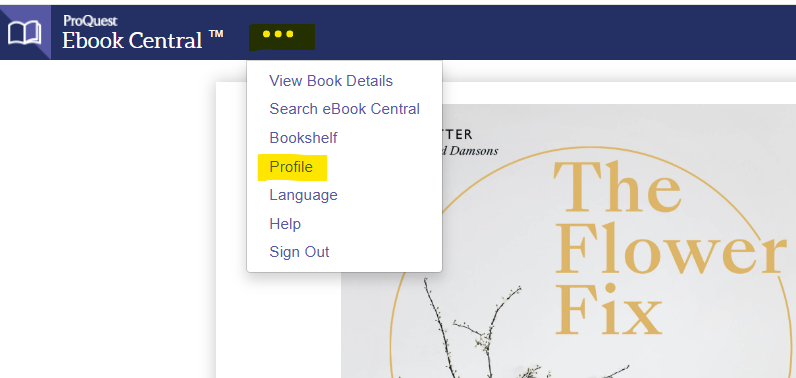
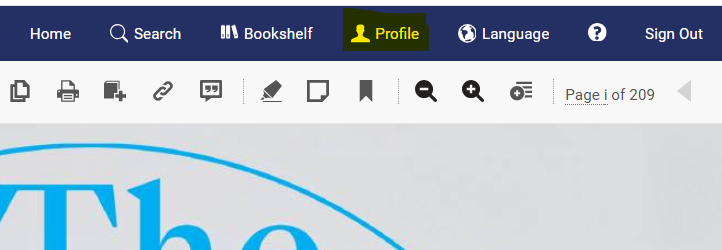
1. Click on Profile top right.

Profile accessed top right in PDF ebook view

If the eBook is in ePub mode, click on the book icon and choose Switch to PDF – you will then see Profile. 


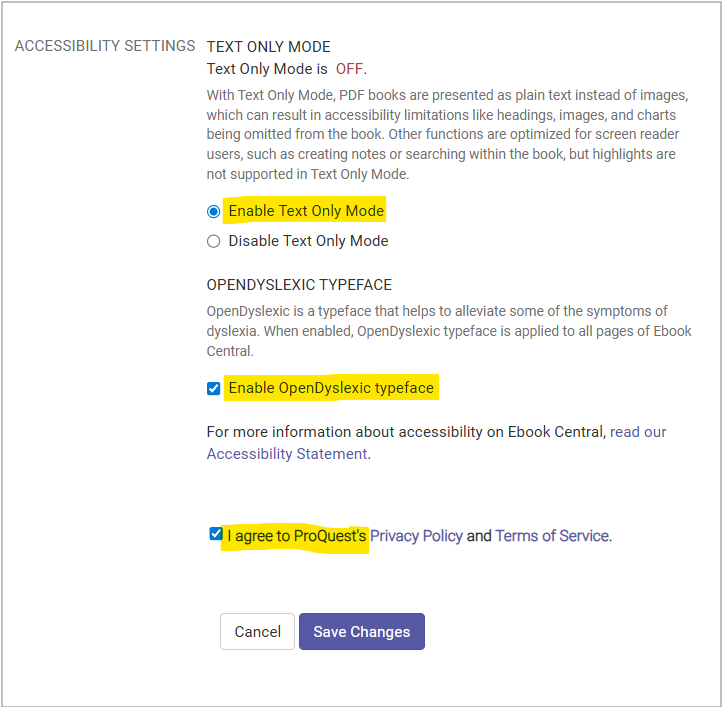
2. When you have clicked on Profile, select Enable Text Only Mode and/or Enable OpenDyslexic typeface, and tick I agree to ProQuest's Privacy Policy and Terms of Service.

3. Save changes then use the back arrow to return to the eBook.


EBSCO eBooks

On the book details page you can see the Formats, accessibility check, and accessibility metadata.  

Within the ebook reader online you can use the tools along the top menu to adjust:

  • Display and text size
  • Font size
  • Character spacing
  • Word spacing
  • Line spacing  

Use the Text-to-Speech feature to have the eBook content read out loud to you.  

Refer to this guide by EBSCO for more information 


Taylor & Francis eBooks

ePubs are more accessible than PDFs.

Using the built-in eReader to:

  • Highlight text and add notes  
  • Search for specific terms, phrases, or concepts throughout the text
  • Adjust font sizes and styles
  • Read-aloud function where users can select their preferred voice type and playback speed

Read the Accessibility Statement for Taylor & Francis eBooks 


Gale database down. 09.09.26

We apologise for the inconvenience, and are working on restoring access. If you are prompted for a password please enter: per_opnz